


ID.me Authenticator
3.511.33K Reviews
App Specs
- Version
- 1.12.0-2025082916
- Updated On
- License
- Free
- Downloads
- 5,000,000+
- Developer
- ID.me
- Categories
- Productivity
- Platform
- Android, iOS
Screenshots
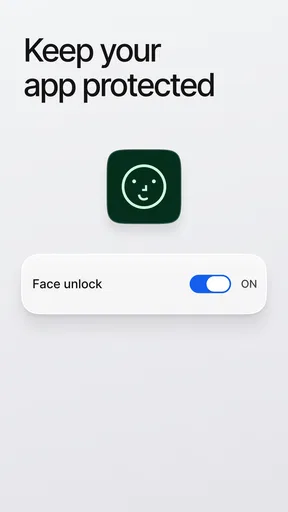
 Analysis by AppCompare
I think ID.me Authenticator makes most sense when you want a straightforward second step for signing in, rather than a feature-packed security hub. An authenticator can’t replace a strong, unique password, but it can make a stolen or guessed password less useful. This app keeps its purpose narrow, which is convenient when you want codes ready without managing a complicated setup.
What the app is—and where it fits
Developed by ID.me, this free productivity app is for generating authentication codes used alongside a password. It has an average rating of 3.5 from around 72,000 ratings, and more than 5 million installs. That level of adoption suggests it has found an audience, though the rating also makes me cautious about calling it a perfect fit for everyone. I’d treat it as a practical tool to try, then confirm it works smoothly with the particular sign-in services you rely on.
The app is rated for Everyone and runs on Android 6.0 or later. Its current version is 1.12.0-2025082916, and it first appeared on December 11, 2018. Those details make it easier to judge basic compatibility, but the more important question is whether a separate code generator suits your daily habits. If you regularly sign in to accounts that offer authenticator-app verification, keeping a dedicated app for that second step can be useful.
A useful second step, not a password manager
I wouldn’t choose this app expecting it to organize passwords, warn about reused credentials, or replace account recovery options. Its role is narrower: it provides a time-based code after you have entered your password. That division is worth understanding before setup. A strong password manager and an authenticator solve related but different problems, and using one does not remove the need for the other.
That distinction also helps explain who may prefer another option. If you want to keep passwords and verification codes in one place, a password manager with authentication support may be more convenient, although combining them can mean both factors are exposed through the same service. If your priority is separating the code generator from your password storage, a standalone authenticator such as this one may better match your approach.
Practical habits that make setup easier
Before moving a large number of accounts to any authenticator, I’d test the process with one lower-stakes account and make sure I can complete a sign-in from another device. Save each service’s recovery codes somewhere secure and separate from the phone. Those codes are not a substitute for the authenticator; they are a fallback if the phone is lost, damaged, or unavailable.
When adding an account, take a moment to confirm the account name shown in the app is recognizable. A few similar entries can become confusing when you are signing in under pressure. I also recommend checking that the device’s date and time are set automatically: time-based codes depend on a close match between the phone’s clock and the service’s clock. This is a small, practical check if a code is rejected unexpectedly.
Worth Reading Before You Choose

EA SPORTS FC Mobile 26 Is a Bigger Football Game, but It Takes Time

Flipboard Shows What News Apps Must Do Beyond the Feed

Switching to Android Auto Means Rethinking Your Driving Routine

Google Calendar Makes a Crowded Week Easier to Manage

Ludo King Makes the Most of the Minutes Between Plans

Baby Panda World Brings Quick Play to Modern Phones, but Its Game Library Feels Busy
Getting Started with ID.me Authenticator
First things first, downloading the ID.me Authenticator app was a breeze. Whether you’re on Android or iOS, you’ll find it in the app store, just a quick tap away. Once installed, setting it up is as straightforward as it gets. The app guides you through linking your accounts, and before you know it, you’re in the world of two-factor authentication (2FA).
Setting Up Your Accounts
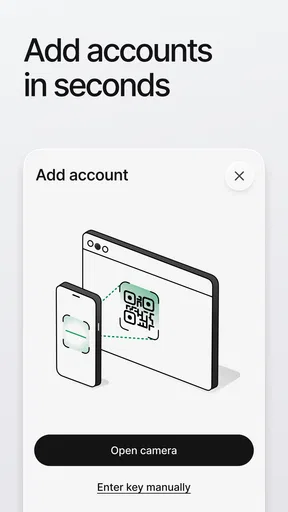
The setup process is user-friendly. You can add multiple accounts, and the app supports a range of services from social media to banking. What’s cool is the way it uses QR codes for quick linking—just scan and you’re done. It’s like magic, but with encryption. You’ll appreciate how it doesn’t require a PhD in tech to get everything running.
User Interface and Experience
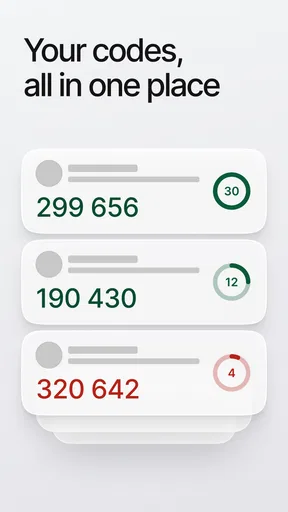
The interface is clean and intuitive. It doesn’t bombard you with unnecessary features, sticking to what it does best: securing your accounts. The design is minimalistic, which I personally love because it keeps things simple. You can easily navigate between your accounts, and the app provides a clear display of your security codes, which refresh every 30 seconds to keep things safe.
Security Features
Now, let’s talk about security because that’s the heart of the app. The ID.me Authenticator uses time-based one-time passcodes (TOTPs), which are pretty much the gold standard in the 2FA world. The app doesn’t store your passwords or personal data, giving you peace of mind. Plus, the fact that these codes change every 30 seconds means even if someone got their hands on one, it’d be useless in no time.
Performance and Reliability
In terms of performance, the app is solid. I didn’t encounter any glitches or crashes, and the codes were always ready when I needed them. It’s reliable, and in the world of security apps, that’s crucial. You don’t want to be locked out of your accounts because your authenticator app decided to take a nap.
Additional Features
While some might find the lack of bells and whistles a downside, I see it as a plus. The app focuses on doing one thing and doing it well. However, it does offer a backup feature that lets you recover your data if you switch devices. This is handy because losing access to your accounts can be a nightmare.
Where the trade-offs show up
That simple approach has a real cost: a separate code app adds one more step to a login, and it makes your phone part of the access routine. If you leave the phone in another room, run out of battery, or replace it before checking that your accounts are recoverable, a routine sign-in can become a chore. I’d keep the app on the device I normally carry and make recovery planning part of setup rather than something to think about only after a problem.
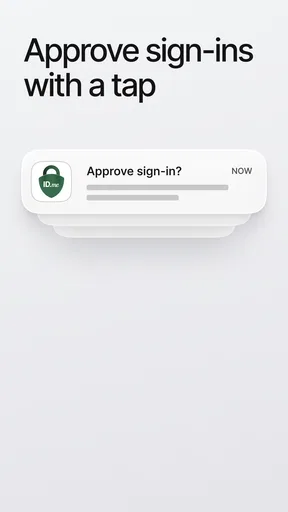
There is also a difference between an authenticator code and a prompt-based approval. With a code, you usually need to open the app, find the relevant entry, and type the current digits into the sign-in screen. That is predictable and does not rely on an approval notification arriving, but it is less effortless than tapping a prompt. For people who value a consistent, manual step, that trade-off is reasonable; anyone who wants the quickest possible login may prefer a service’s built-in prompt or passkey when available.
A typical day with codes
Imagine signing into a financial account from a laptop while your phone is nearby. You enter your password, open the authenticator, locate the matching account, and type its current code before it changes. The process is brief once the account is easy to identify. If you are doing this while commuting or with one hand occupied, it is less convenient than a saved passkey, so I would reserve code-based verification for accounts where the extra separation matters more than speed.
For work or shared household routines, I would not treat one person’s phone as a casual, common code source. Each account should have a clear owner and a recovery plan that the owner can use independently. That reduces confusion if someone changes devices or is unavailable, and it avoids turning a personal security step into an informal team process.
Choosing between authenticator options
Compared with SMS codes, an authenticator can avoid waiting for a text message and does not depend on having cellular service at the moment you need the code. But it still depends on access to the phone and on setting up recovery sensibly. Compared with hardware security keys, codes are easier to start using if you already carry a phone, while a key can offer a more deliberate physical sign-in step. Neither choice is universally best: the right one depends on the services you use, your tolerance for carrying an extra device, and how much effort you are willing to spend on account recovery.
Some people will be better served by platform sign-in tools or passkeys, especially when their main goal is fewer manual steps across familiar devices. Others may prefer a broader authenticator that fits into an existing password-management routine. I see this app as the simpler, separate-code option—not a universal replacement for those approaches. Before committing, check that the accounts you care about let you use authenticator codes and keep any offered recovery method available.
Who I would recommend it to
I’d recommend it to someone who wants a focused app for verification codes, is comfortable reaching for a phone during sign-in, and is willing to protect recovery information separately. It may suit people who are adding a second factor to a few important accounts and do not want a combined password-and-code manager. The uncomplicated layout is especially helpful if you would rather see a short list of account entries than learn a larger security suite.
I would skip it if you expect it to store passwords, make every login automatic, or eliminate the need to plan for a lost phone. It is also not the best match if you strongly prefer passkeys, security keys, or approvals built directly into a service. Those choices can make more sense for a person who prioritizes frictionless access or a physical token over typing a rotating code.
Final Thoughts
Overall, the ID.me Authenticator is a fantastic choice for anyone looking to boost their online security without the hassle. It’s easy to set up, user-friendly, and reliable. Whether you’re a tech newbie or a seasoned pro, you’ll find it a valuable addition to your app arsenal. So, if you’re tired of juggling passwords and want a simple way to secure your digital life, give it a shot. It just might be the security sidekick you’ve been looking for.
My verdict
My recommendation is positive but specific: use it if a straightforward, separate code generator fits the way you sign in, and pair it with strong passwords and a deliberate recovery plan. Its focus is its clearest strength, while the extra manual step and reliance on your phone are the compromises to accept. For a person who wants uncomplicated two-factor codes and is prepared to keep account recovery organized, it is a sensible option to consider.
Pros
- Easy two-factor authentication setup.
- Supports multiple accounts seamlessly.
- Quick QR code scanning functionality.
- Secure encryption for added protection.
- User-friendly interface with clear instructions.
Cons
- Limited customization options available.
- Occasional sync issues reported by users.
- Requires internet for initial setup.
- No backup options for restoring data.
- Limited customer support response time.
FAQs for ID.me Authenticator
What is ID.me Authenticator used for?
ID.me Authenticator is a multi-factor authentication (MFA) app designed to provide an extra layer of security for your online accounts. It generates time-sensitive codes to verify your identity when logging into various services. This ensures that even if your password is compromised, your account remains secure.
Is ID.me Authenticator compatible with all devices?
ID.me Authenticator is available for both Android and iOS devices. It can be downloaded from the Google Play Store or Apple App Store. The app is compatible with most smartphones and tablets running up-to-date operating systems, ensuring broad accessibility for users.
How do I set up ID.me Authenticator with my accounts?
Setting up ID.me Authenticator involves linking it to your online accounts. Typically, you’ll find an option to enable two-factor authentication (2FA) in your account settings. Use the app to scan a QR code or enter a unique code provided by the service to link your account securely.
What if I lose access to my ID.me Authenticator codes?
If you lose access to your codes, it’s crucial to have backup options set up, such as backup codes or alternative verification methods. Contact the support team of the service you’re accessing for help restoring access to your account without the authenticator codes.
Is ID.me Authenticator secure and reliable?
Yes, ID.me Authenticator is designed to enhance security by providing an additional verification step. It uses industry-standard algorithms to generate codes, ensuring reliability. However, like any security measure, it’s essential to follow best practices, such as keeping your device secure and using strong passwords.


